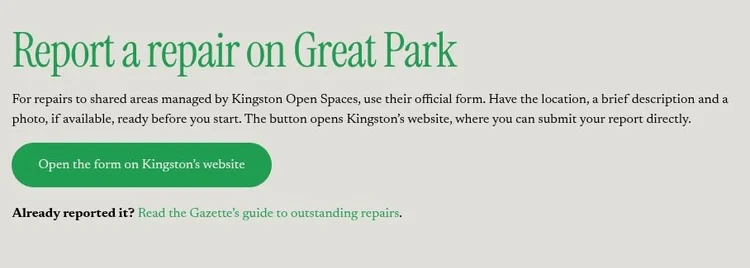
Great Park residents can report shared-area repairs to Kingston Open Spaces through the Gazette and follow progress on the new public Issue Tracker. Here’s how to use both.
Look for the two green buttons under Repairs on Great Park on the Gazette’s Estate Management page. If a gate is broken, a footpath is damaged or there’s another problem in a shared area managed by Kingston Open Spaces, use Report a Repair to send it to the team. Once you’ve reported it, use the Issue Tracker to keep a public record of what happens next.
1. Report the repair to Kingston Open Spaces
Go to Report a Repair and select Open the form on Kingston’s website.
Fill in the contact details Kingston asks for. In the repair details, describe the problem and give the exact location, including a nearby landmark if useful. You can attach a photo if you have one.
Submit the form on Kingston’s website. Keep any reference number Kingston gives you so you can add it to the tracker.
2. Add the repair to the public tracker
Open the Issue Tracker. Check Reported issues first. If the repair is already listed, open it and add any new information there.
Select Add an issue. Give it a short title, such as “Broken gate at the play area”. Enter the location, the date you reported it and a brief description of what you told Kingston. Add the Kingston reference number if you have one.
Attach a photo if helpful. Choose a JPEG, PNG or WebP up to 20 MB. HEIC can also work in browsers that open it, such as Safari 17 or later.
Select Add to tracker. The report appears under Reported issues with its own page. Use View issue to open it and copy the address if you want to share it.
The tracker is public. Use a street or landmark for the location and leave out private contact details, faces and number plates. Add to tracker publishes your entry on the Gazette’s tracker. To send the repair to Kingston, use Report a Repair.
3. View progress or post an update
Under Reported issues, select View issue on the repair you want to check.
Read the Progress notes. If you have news to share, enter a brief note in Progress update, such as “The gate was inspected this morning”.
Choose Reported, In progress or Complete, then select Post update. The note and date appear on the issue page for everyone to see.
All residents can view the tracker and post progress updates without signing in. Kingston Open Spaces staff can use the same public tracker to view reports and add updates. Posts on the tracker are labelled Resident update.
Screenshots
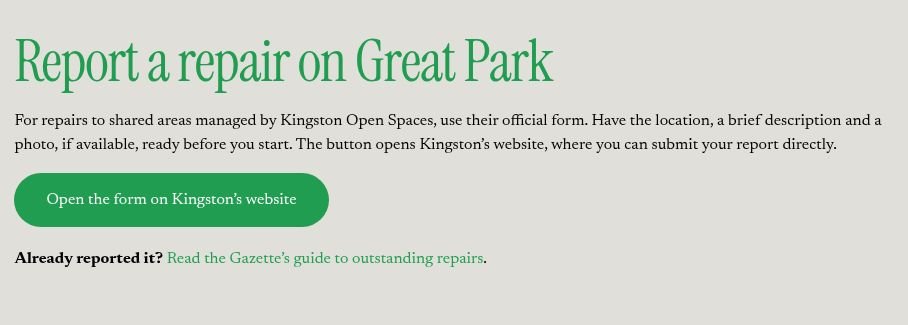
1. From Report a Repair, open the official form on Kingston’s website.
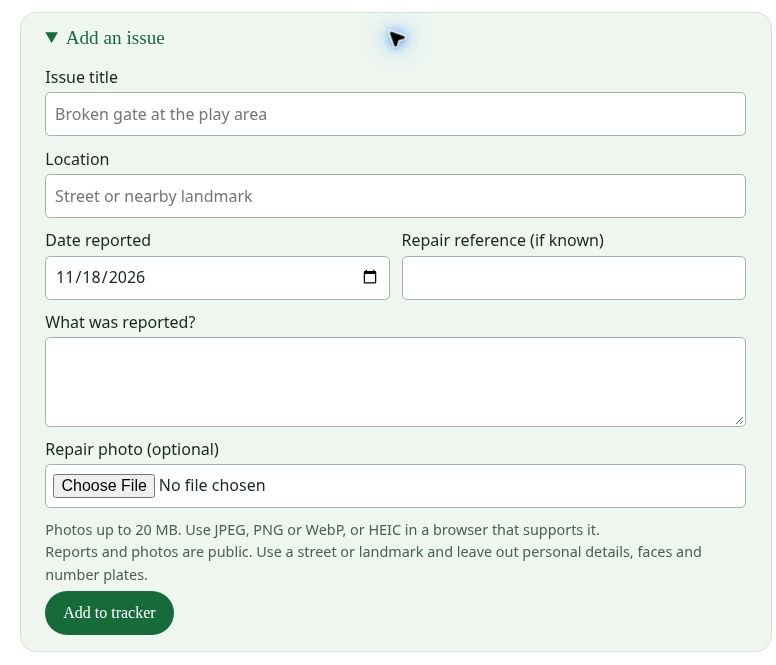
2. In Issue Tracker, complete Add an issue and select Add to tracker.
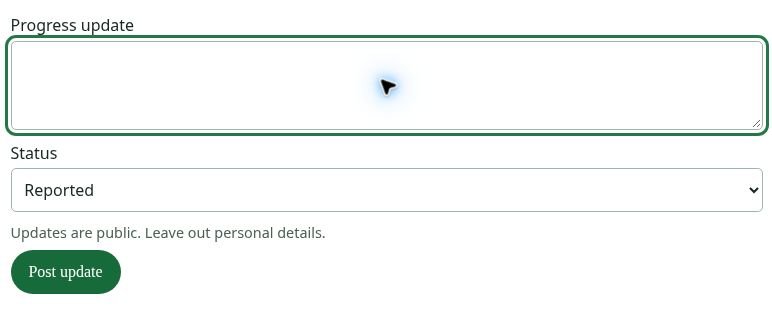
3. On the issue page, add a progress note, choose a status and select Post update.